AION 2 Global Controls: Keybinds, Combat, and UI Guide
Master AION 2 Global controls with practical tips for keybinds, targeting, flight, skill chains, macros, and HUD settings. Make combat easier to follow.
Jump to
Get Comfortable With Combat and Targeting
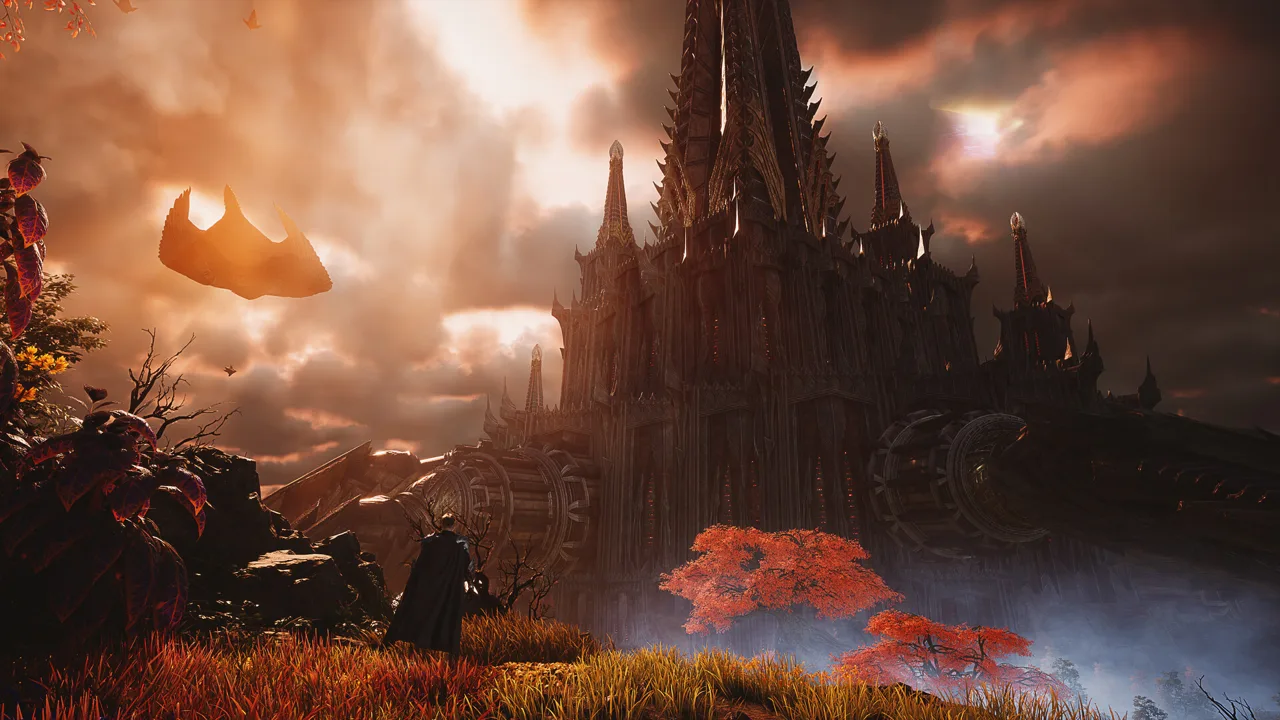
An awkward targeting setup can make a straightforward fight feel like a wrestling match with your camera. Learning AION 2 Global controls helps you follow enemies, reach essential actions, and understand why your skill bar changes during combat. Start by adjusting AION 2 Global controls around your preferred combat mode, then organize flight binds, skill chains, and the HUD so you can keep your attention on the battlefield.
You do not need to rearrange every menu before playing. Focus on the settings that affect what you target, what happens when you press an attack, and how clearly you can see the encounter.
Action Combat vs. Traditional Targeting
Action combat is the default mode for a newly created character. It uses a central aiming dot, and mouse movement controls your camera view. Keeping the enemy in view matters when attacking.
The alternative targeting mode works more like the original AION: you select an enemy and retain that target while adjusting your view. These modes also affect how basic attacks behave.
| Control behavior | Action combat | Traditional targeting |
|---|---|---|
| Targeting emphasis | Keep the enemy in your aiming view | Select and retain a target |
| Camera behavior | Mouse movement follows the aiming view | Allows camera adjustment around a selected target |
| Basic attack behavior in the Chanter example | Requires manual left-click input | Resumes automatically after another skill |
| Setup decision | Practice aiming alongside skill inputs | Practice target selection alongside positioning |
Try both modes before arranging your entire hotbar. Watch whether camera movement helps you track the enemy or interrupts the way you want to position your character.
For a Chanter using the mana-restoration specialization on the basic attack, that input difference matters. Practice returning to the basic attack between skills, especially while your mana pool is small.
Make Target Selection Follow Your Camera
Set Search Direction to Front of Camera so target searches follow the direction you are looking.
For melee combat, try enabling the option that pursues a target when you activate a skill. For ranged combat, leave it disabled if you want to manage your own positioning.
Also check Set Main Target on Right-Click Attack. Disable it if you do not want right-click attacks choosing your main target. This deserves attention before assigning another combat function to that mouse button.
Official page: AION 2 (aion2.plaync.com)
Set Up Keybinds for Combat and Flight
Open Settings → Key Settings to arrange your inputs. Build your AION 2 Global controls around frequently used actions, including regular quick slots, interaction, and flight.
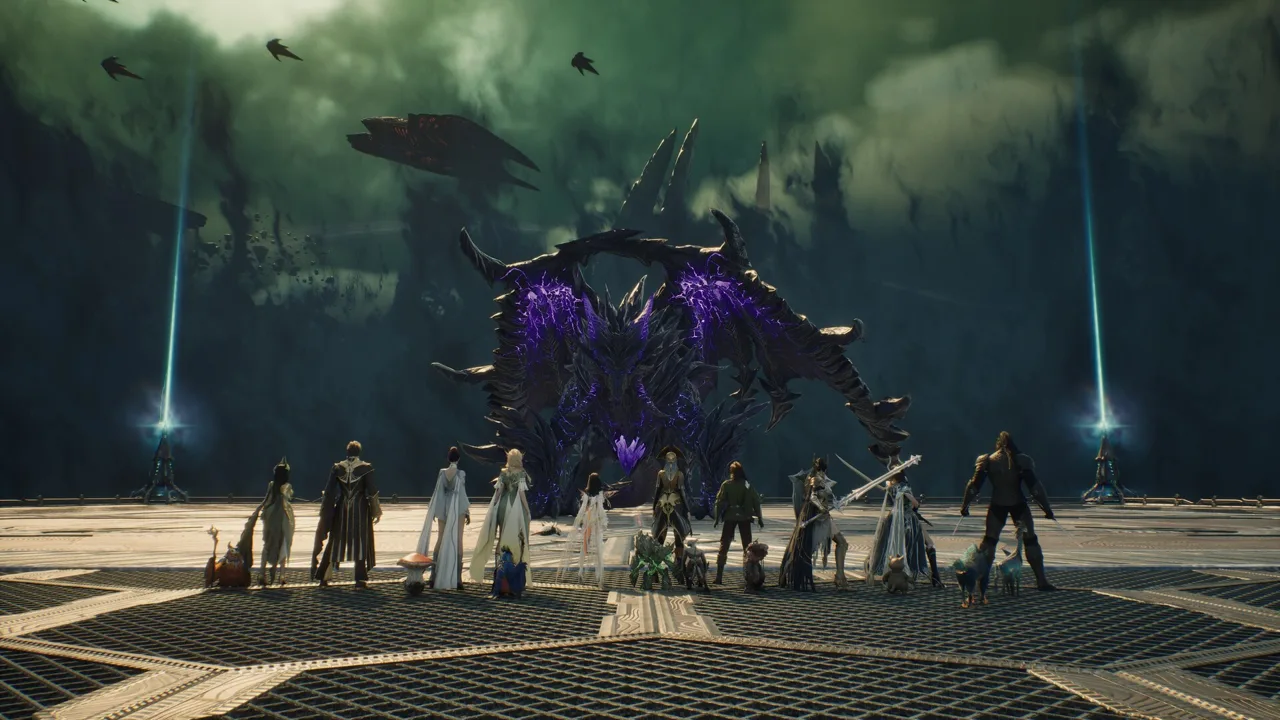 Image: Steam / NC
Flight deserves an accessible bind because aerial movement is central to exploration and combat. Give Flying and Fly Up separate inputs so activating flight and gaining altitude are easy to distinguish.
| Action | Binding information | Practical setup tip |
|---|---|---|
| Flying | Configurable in Key Settings | Use a comfortable key or side mouse button |
| Fly Up | Can be bound separately | Place it where you can reach it during flight |
| Interact | Configurable in Key Settings | Keep it close to frequently used inputs |
| Combat macro | Available under the gameplay and macro section | Choose a key that fits your combat layout |
| Journal | G in the demonstrated layout | Use it to check quests and duty missions |
| Legion | L in the demonstrated layout | Use it to access Legion options |
Give Each Mouse Button a Clear Job
Right-click is an option for the combat macro, but review its targeting behavior before using it that way.
If right-click attacks also set your main target, decide whether that behavior suits your setup. Adjust the targeting option alongside the macro bind so the button behaves the way you expect.
Keep your basic attack input in mind, too. In action combat, the Chanter example requires manual left-click use. Practice that input alongside your skill keys instead of assuming the targeting modes handle it identically.
Keep Menu Shortcuts Separate From Combat Priorities
The Journal provides access to episode quests, regional quests, and duty missions. Learn its shortcut so checking your objectives becomes routine.
The Legion menu has its own shortcut, but it does not need the same attention as flight or your main combat inputs. Arrange frequently pressed actions first, then familiarize yourself with menus as you use them.
Avoid copying a complete layout without checking your own reach. Press each chosen key while maintaining your normal hand position, and move any uncomfortable bind before practicing a longer skill sequence.
Understand Skill Chains, Macros, and Presets
A changing skill icon does not necessarily mean your layout has broken. Skills arranged in a chain share a line, and the displayed skill changes as the chain advances and abilities enter cooldown.
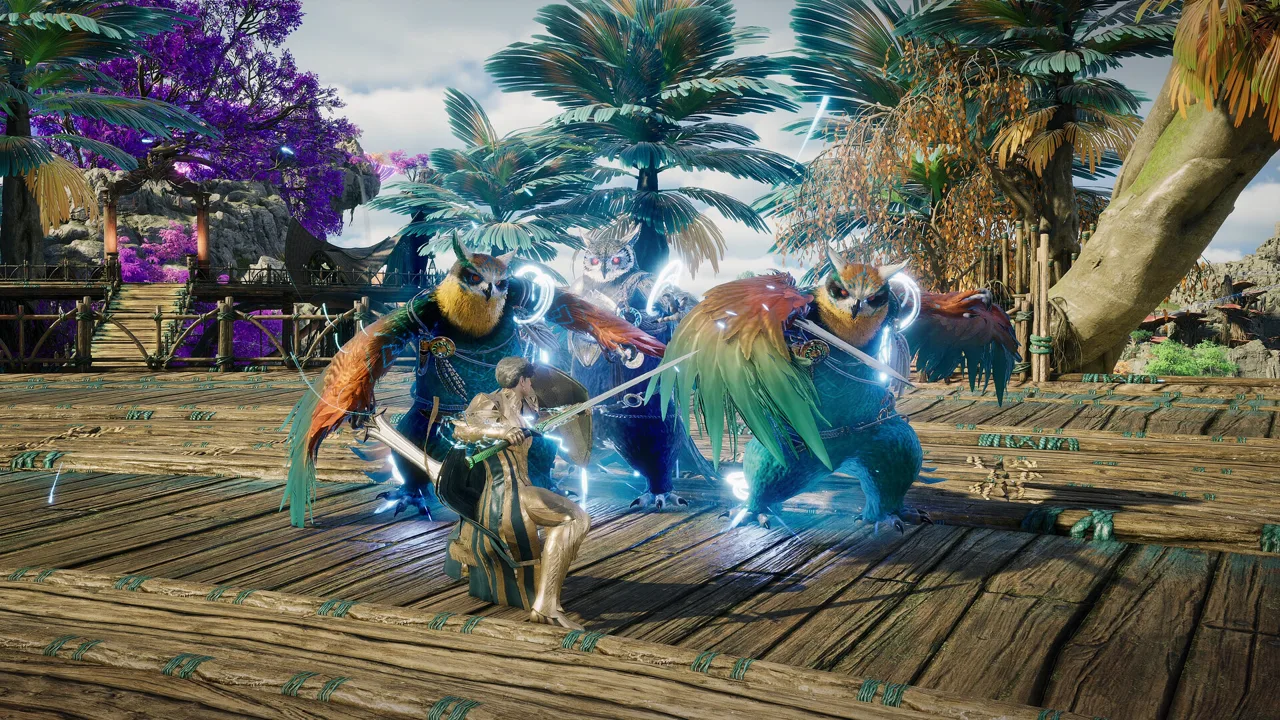 Image: Steam / NC
Understanding that behavior makes AION 2 Global controls much easier to read. The visible button can represent a sequence of abilities rather than one permanently displayed attack.
How Skill Chains Change the Active Button
Consider a chain containing an opening attack followed by another skill. After using the opening attack, the follow-up takes its place on the active button while the opener is on cooldown.
| Setup element | What happens | What to check |
|---|---|---|
| Opening skill in a chain | Appears as the initial active skill | Identify the button that starts the chain |
| Follow-up skill | Replaces the opener as the chain advances | Watch the icon after using the opening attack |
| Skills on cooldown | The chain moves through its configured priorities | Check which ability is currently available |
| Chain added to a macro | Selecting the opening entry includes its chain | Review the full line attached to that entry |
Arrange the sequence in the skill interface, then watch it during combat. Follow the icon changes until you can recognize the opening attack and its follow-up without stopping to inspect the entire board.
Bind the Built-In Combat Macro
To assign the macro input:
- Open Settings.
- Select Key Settings, then General.
- Scroll to the gameplay and macro section.
- Assign your preferred macro key.
The important distinction is between an individual skill and the chain attached to its entry. When you add the opening entry to the macro, its associated chain is included.
If you are searching the macro interface for a follow-up skill, check whether it already belongs to a chain. Review that chain before rearranging the macro, since the opening entry represents more than its initial icon.
Use Presets for Different Builds
Skills and specializations can be reset without a cost. You can reset an individual skill or the full skill board, which makes adjustments easier when you want to change how a build works.
Use presets to organize separate PvE, PvP, or solo setups. Name them clearly so you can recognize the intended build when switching.
For example, a Chanter setup can use an MP-focused specialization in one preset and HP absorption in another. Keep those choices organized rather than manually rebuilding the specialization setup whenever you want to switch.
Preset sections also exist for equipment and other character systems, including wings, titles, and stigmas. Check the relevant preset sections when changing builds so your selected skills and equipment match your intended setup.
Arrange Your HUD and Read Combat Clearly
AION 2 Global controls include the information you rely on between button presses. If nameplates, effects, and floating numbers crowd the screen, following a target becomes harder even with comfortable keybinds.
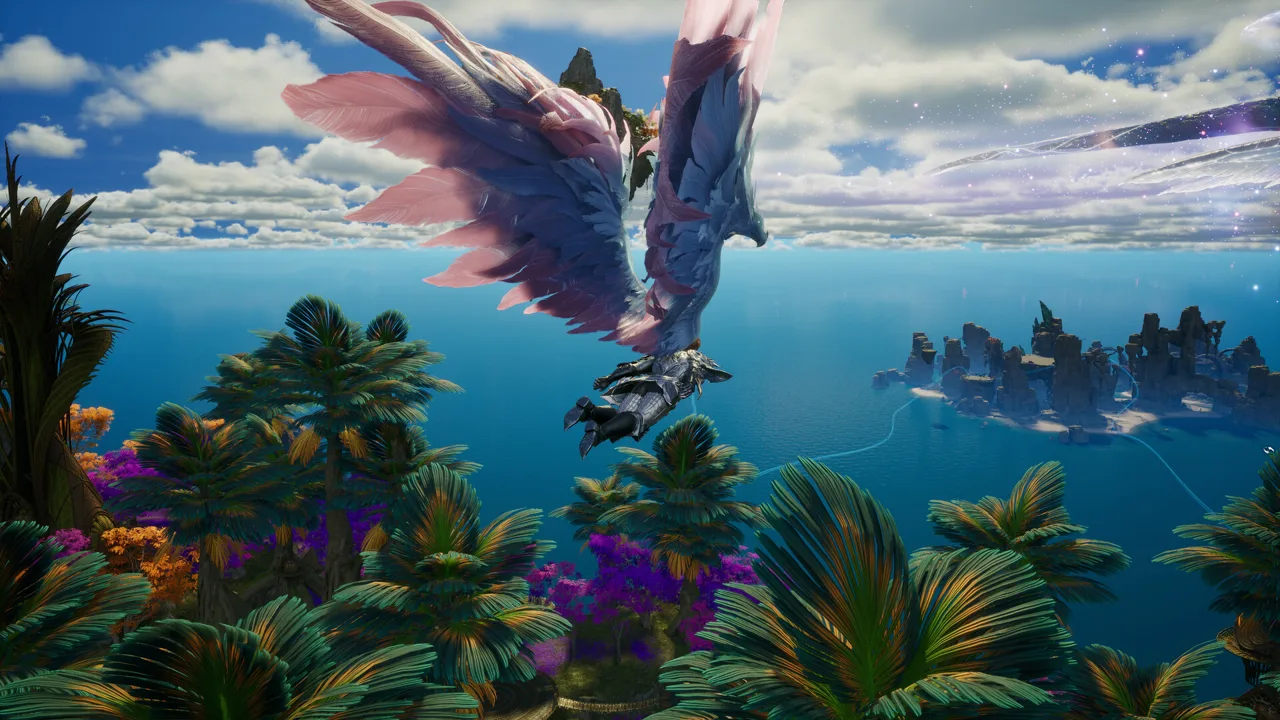 Image: Steam / NC
The HUD editor lets you move interface elements and hide individual widgets. Save the layout after making changes so you can assess it during normal play.
| Setting or interface element | Available adjustment | Purpose |
|---|---|---|
| HUD widgets | Move or hide elements | Keep important information in a readable position |
| Player and spirit nameplates | Hide through Info Display | Reduce overlapping labels |
| Pets | Hide through Info Display | Reduce additional screen clutter |
| Floater Display | Turn off floating combat numbers | Clear the view if numbers obstruct combat |
| Boss orientation indicators | Enable indicators | Make the boss’s front and back easier to read |
| Camera Shake | Turn off | Keep the combat view steadier |
| Teleport Effect Color | Set to Dark | Reduce the brightness of transitions |
Hide Elements Selectively
Move useful widgets before hiding them. The map can be hidden, but keep it visible if you still depend on it while learning an area.
The quest speech widget can also be hidden. Use that option if repeated on-screen speech interruptions distract you, while keeping the quest information you need accessible.
Boss orientation indicators help you identify the front and back of a boss. Use them when practicing positioning, while remembering that they may not appear on world bosses.
Reduce Effects During Crowded Battles
Lower Effect Quality and Mass Combat Quality if you want to prioritize frame rate. In crowded Abyss battles, also try hiding tier icons above player names and enabling Identical Player Appearance.
These adjustments reduce visual complexity, but their performance benefit depends on your hardware and the scene. Compare how clearly you can follow targets during ordinary play and a crowded encounter.
Set automatic buff use to In Combat to help avoid consuming buffs unnecessarily outside fights.
The built-in Combat Analysis panel tracks your personal damage. Activate it, attack, stop the recording, and open the results to inspect your damage. Use it alongside practice with your skill chains; it is a personal analysis tool rather than a group-wide damage meter.
Test Your Setup and Fix Common Control Problems
After adjusting AION 2 Global controls, practice the actions you changed before moving into a demanding encounter.
Start with target selection and basic attacks. Then work through a skill chain, use the macro input, activate flight, and climb with the separate Fly Up bind. Watch your HUD throughout the sequence to see whether the information you need stays visible.
If Your Attack Does Not Connect
In action combat, bring the enemy back into your aiming view. Check whether you are trying to attack while looking away from the target.
In traditional targeting mode, check your selected target. If target searches feel disconnected from your camera direction, review Search Direction.
If Your Skill Button Changes Unexpectedly
Inspect the chain attached to that button. A follow-up replacing an opener is part of the chain behavior.
If the macro does not display the separate skill entry you expected, check the opening entry and its associated line.
If Your Character Moves When You Attack
Review the option that pursues targets on skill activation. Disable it if you want direct control over your positioning, particularly with a ranged build.
If Combat Is Hard to Read
Reduce nameplate clutter, review Floater Display, and turn off Camera Shake. Adjust one setting at a time so you can identify which change improves visibility.
Keep refining AION 2 Global controls around the actions you actually use. A comfortable layout should let you follow the enemy, understand your current skill, and reach flight inputs without searching through menus.
FAQ
Where do I change AION 2 Global controls?
Open Settings → Key Settings to customize inputs. The combat macro binding is in General, under the gameplay and macro section. Targeting options and HUD adjustments handle other parts of your setup.
Is action combat the default mode?
Yes. Newly created characters begin in action combat, which uses a central aiming dot and mouse-controlled camera view. Traditional targeting offers an alternative built around selecting and retaining an enemy target.
Why does another skill replace the one on my hotbar?
The skills belong to a configured chain. After the opening skill is used and enters cooldown, the follow-up takes its place on the active button. Check the full chain to understand the sequence.
Should Flying and Fly Up use separate keybinds?
Yes—bind them separately so activating flight and climbing have distinct inputs. Put both within comfortable reach, then practice using them together during aerial movement.
Continue with
 AION 2 Global End Game Content: Daily & Weekly GuideExplore AION 2 Global end game content with daily quests, weekly dungeons, raids, PvP, and crafting tips. Plan the level 45 progression and weekly rewards.
More in Guides
AION 2 Global Gear Progression: Reach 1,400 Efficiently
Master AION 2 Global gear progression with accessory upgrades, passive boards, and dungeon rewards. Reach 1,400 gear score while saving Odyle Energy.
AION 2 Global Leveling Guide: Reach 45, Save Resources
Use this AION 2 Global leveling guide to follow the story, clear ascension gates, save dungeon energy, and prepare for level 45 without wasting resources.
AION 2 Global Guide: Leveling, Gear, and Dungeon Tips
Use this AION 2 Global guide to plan leveling, manage gear upgrades, understand playtest changes, and tackle Vakron Sky Island with clear beginner tips.
Join the community
Official channels for news, updates and player help: